Rules of Survival Legacy Network Settings
Reduce lag, stabilize connection, and maintain peek timing in BR firefights on PC.
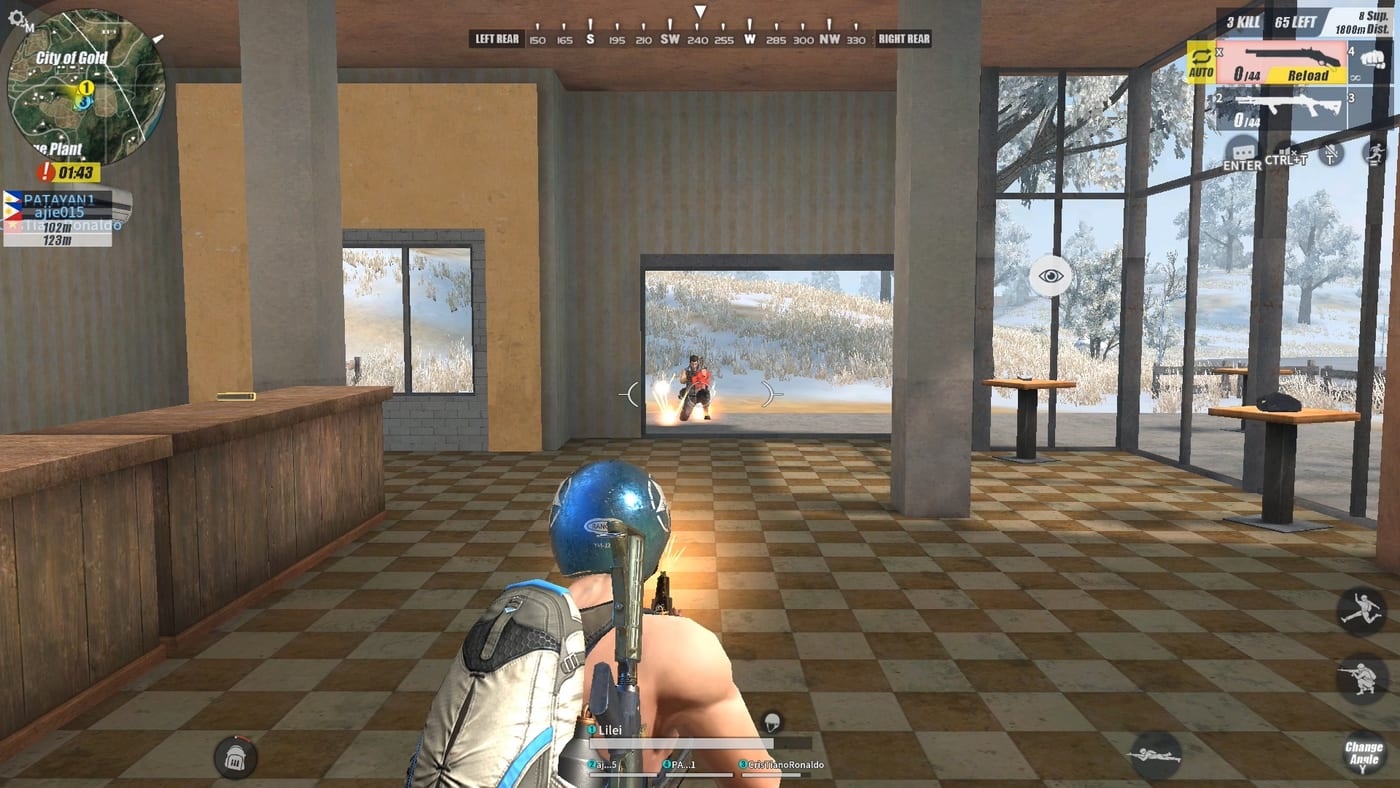
Network performance decides firefights in battle royale games. A player with superior aim loses to a player with lower latency when peek timing and bullet registration lag behind real-time actions. Rules of Survival Legacy targets PC multiplayer under Myth Games, still Under Development with no verified public release. This guide covers network preparation 鈥?connection optimization, router settings, and habits that keep your packet flow stable when circles compress and combat intensifies.
Why network matters more than frames
BR games punish network jitter harder than occasional frame drops. A player at 60 FPS with 150ms latency and stable packets often loses to a player at 30 FPS with 80ms latency and consistent connection. Packet loss, latency spikes, and jitter create situations where your client disagrees with the server on whether your bullet hit or your opponent’s bullet missed.
Classic ROS players remember moments where ADS and shooting felt fine visually but hits did not register 鈥?that was network desync, not aim failure. Legacy’s server infrastructure under Myth will determine whether those moments return, but your local network setup determines the baseline you control.
Essential network habits
Use wired Ethernet over Wi-Fi
Wi-Fi introduces variable latency based on signal strength, interference, and competing device traffic. Even premium wireless routers add 10鈥?0ms of unpredictable delay compared to a direct Ethernet connection.
If Ethernet is impossible:
Position your PC within 3 meters of the router with direct line of sight Reduce competing Wi-Fi device usage during matches Use the 5GHz band for gaming rather than 2.4GHz Disable automatic firmware updates on all devices sharing your network
Disable VPNs unless required
VPNs add extra routing hops that increase baseline latency. If Myth requires a VPN for region verification or if your ISP uses CGNAT, VPNs may be necessary 鈥?but for players with direct internet access, a VPN adds latency with no benefit.
Some players use VPNs to access servers in different regions. This introduces additional latency and is not recommended for competitive play.
Configure router QoS for gaming
Quality of Service settings on your router let you prioritize gaming traffic over other household usage. Access your router settings (typically 192.168.0.1 or 192.168.1.1) and:
Set your gaming PC as a high-priority device Enable gaming mode or gaming QoS if your router offers it Limit bandwidth to other devices during matches if necessary Disable parental control or security scanning that inspects packet contents
Port forwarding and NAT
Classic ROS sometimes required port forwarding for reliable matchmaking and voice chat. If Legacy requires similar configuration:
Common gaming ports (verify with official documentation):
UDP 3478, 3479, 3480 鈥?STUN/TURN for voice UDP/TCP 80 and 443 鈥?game traffic UDP high range 鈥?typically 7000鈥?000 for game data
NAT type affects matchmaking. Open NAT (Type 1) allows direct peer connections. Moderate NAT (Type 2) works with relay servers. Strict NAT (Type 3) may block certain connections.
To improve NAT type:
Enable UPnP on your router Set your gaming PC as a DMZ host (use with caution 鈥?exposes your PC to internet) Contact your ISP if CGNAT is causing strict NAT issues
In-game network settings
When Myth publishes network options in the client menu, prioritize:
Server region selection 鈥?choose the lowest-ping server available Packet send rate 鈥?higher rates improve hit registration but require bandwidth Audio/voice channel quality 鈥?high-quality voice can compete with game audio; lower quality if bandwidth is constrained
Monitoring network health
Before entering a match, verify your connection status:
Run a continuous ping test to your ISP gateway and a public DNS (8.8.8.8) Look for latency spikes above 20ms variance Check for packet loss 鈥?even 0.5% packet loss creates noticeable desync in BR Monitor bandwidth usage on your network during a match
If you see consistent issues, troubleshoot in this order: modem restart 鈫?router restart 鈫?ISP contact 鈫?ethernet direct connection test.
What Legacy may change
Myth Games has not published network architecture details. Potential improvements over classic ROS could include:
Server-side hit registration improvements Client-side prediction tuning Optimized packet compression for lower bandwidth requirements
Monitor Discord and official announcements for network infrastructure details as Myth approaches public testing.
Related pages
Graphics Settings 鈥?visual optimization alongside network Sensitivity Guide 鈥?mouse feel affected by network stability Circle Strategy 鈥?timing discipline requires network consistency September Status 鈥?development updates on server infrastructure
Preguntas frecuentes
Respuestas rápidas a las preguntas más comunes.
Does Wi-Fi work for ROS Legacy?
Wi-Fi introduces variable latency that can cause desync in BR firefights. Wired Ethernet is strongly recommended for competitive play.
Should I use a VPN for Legacy?
Only if required for region verification or if your ISP uses CGNAT. VPNs add latency by routing through extra servers and are not recommended for competitive play.
What NAT type do I need for matchmaking?
Open NAT (Type 1) is ideal. Moderate NAT (Type 2) works with relay servers. Strict NAT (Type 3) may block some connections. Enable UPnP or contact your ISP to improve NAT type.
How do I check my network stability before a match?
Run a continuous ping test to your gateway and 8.8.8.8. Look for latency variance under 20ms and zero packet loss. High variance or packet loss indicates network problems.
Will Legacy have better hit registration than classic ROS?
Unknown. Myth has not published server architecture details. Monitor official channels for network infrastructure updates as development progresses.
What ports does ROS Legacy use?
Official port configuration has not been published by Myth Games. Classic ROS used UDP 3478鈥?480 for voice and UDP/TCP 80/443 for game traffic. Update port settings when Myth publishes official documentation.